Create a floor plan without LiDAR in Room Scanner
Live scanning needs the LiDAR sensor found in iPhone Pro and iPad Pro models. On any other iPhone or iPad you can still make a floor plan: measure the room with a tape measure or laser, type the measurements in, and Room Scanner builds the same 2D plan and 3D model as a scan.
1. Enter a room
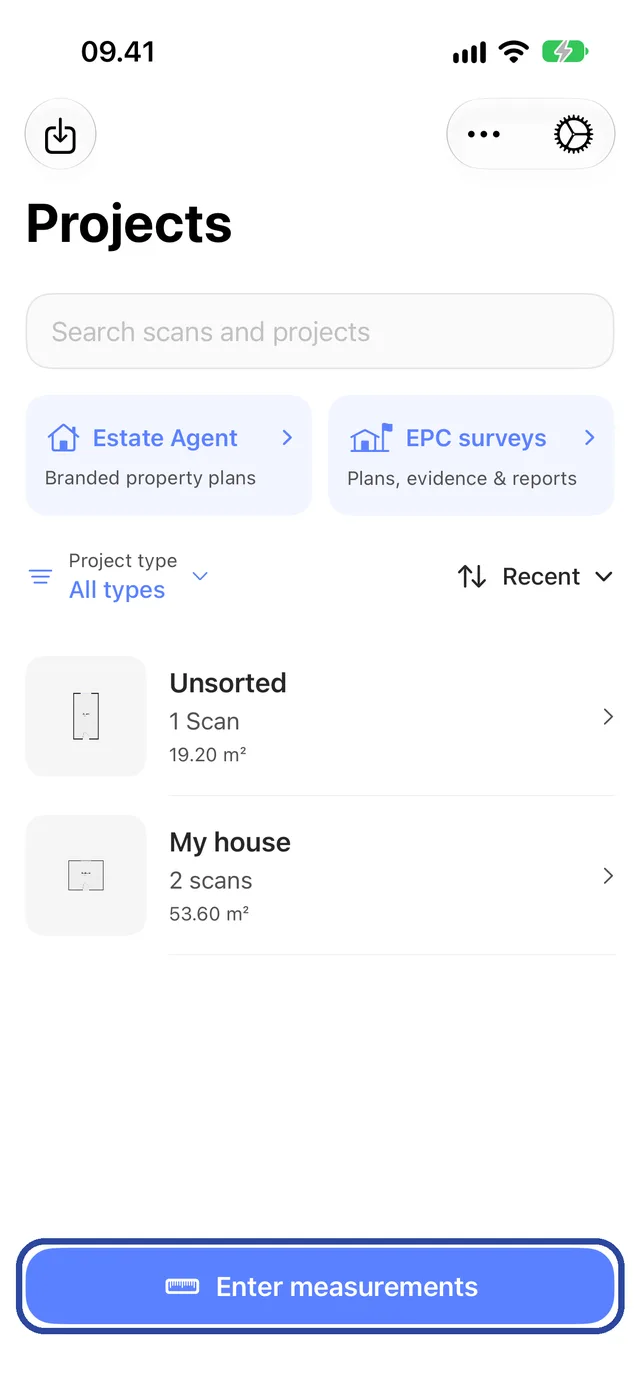
On a device without LiDAR, the button at the bottom of the Projects screen reads Enter measurements. Tap it.
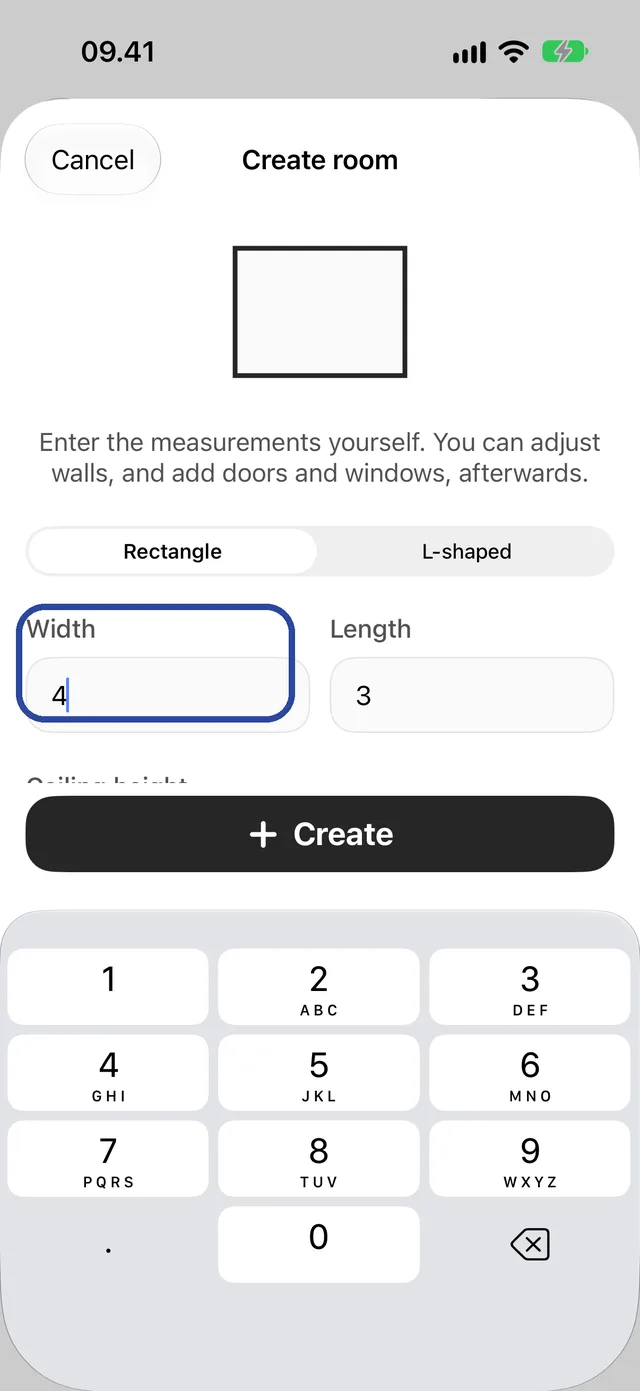
The Create room screen opens. Choose the shape:
- Rectangle for an ordinary four-wall room.
- L-shaped for a room with one corner cut out.
Then enter the Width, Length and Ceiling height. On iPhone the keypad covers the lower fields: scroll down to reach Ceiling height. The app uses the units from Settings (metres or feet), and both a comma and a full stop work as the decimal mark. The Floor area below updates as you type.
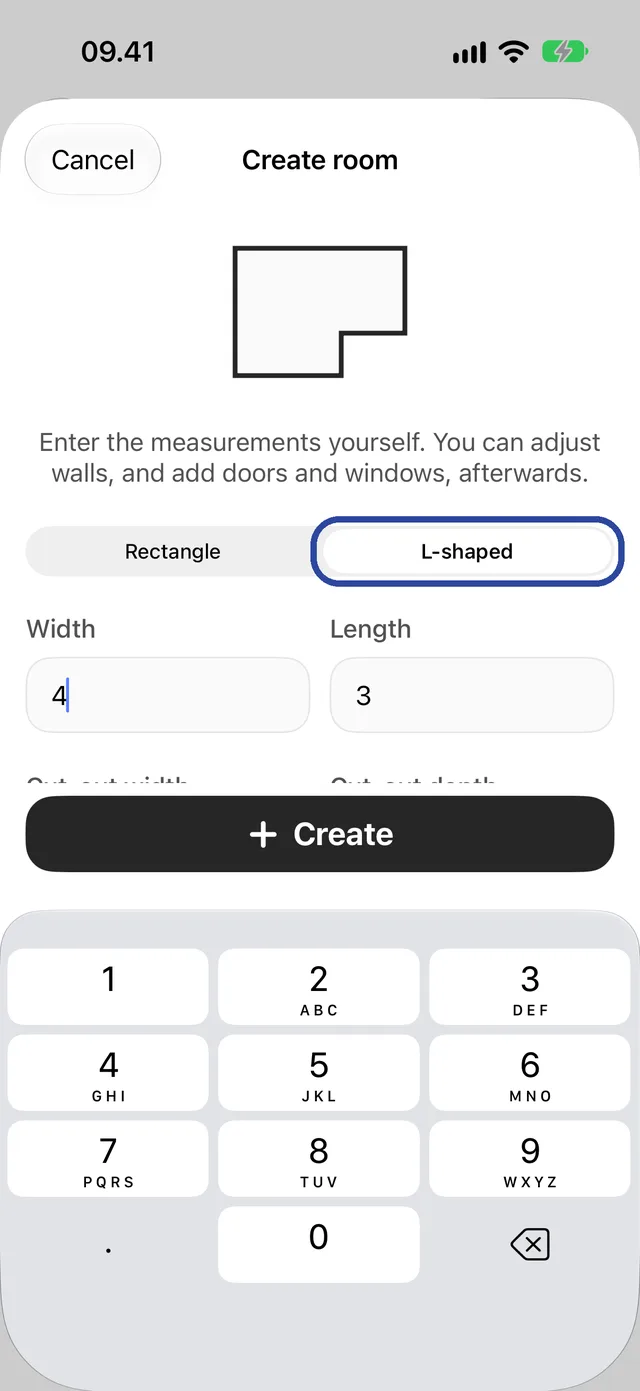
For an L-shaped room, also enter the Cut-out width and Cut-out depth: the size of the missing corner. The cut-out must be smaller than the room in both directions.
If you already have projects, pick one in the Project row, or leave the room in Unsorted. Tap Create.
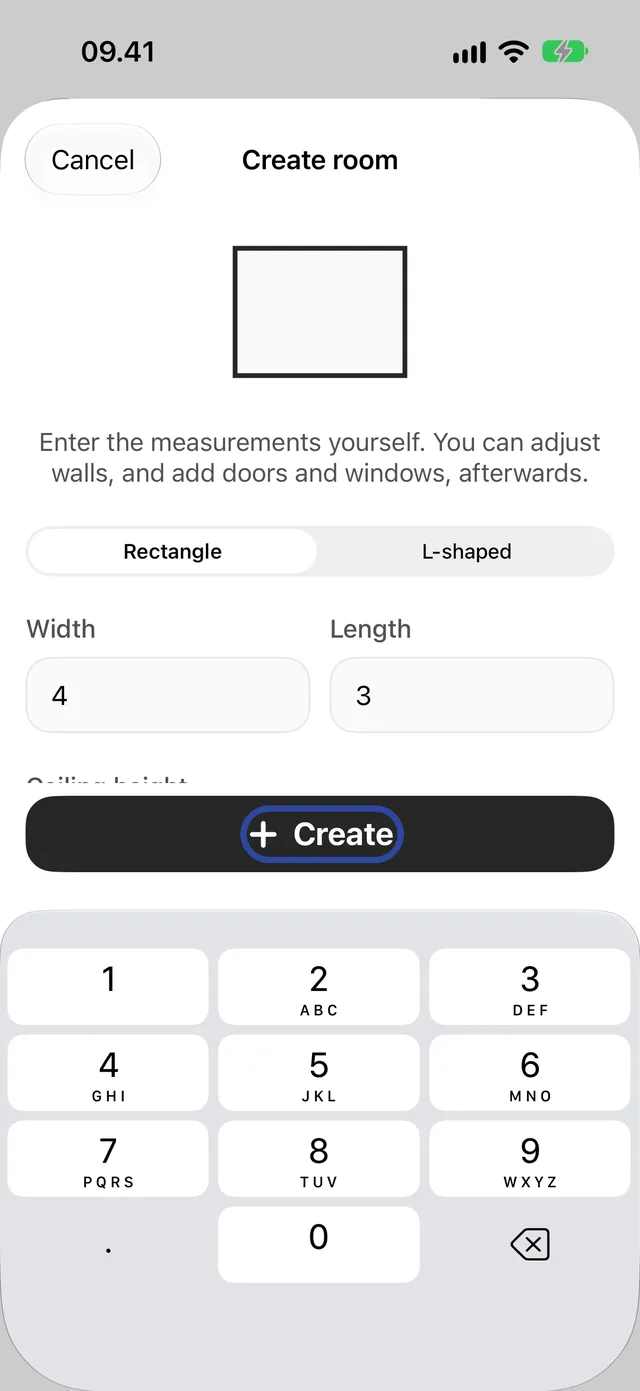
The new plan opens straight away, ready to view in 2D, 3D or AR.
2. Add doors and windows
The Create room screen only takes the room's size. Add the openings in the editor:
- Tap the pencil next to Info at the bottom of the plan.
- Tap + at the top of the editor and choose Door, Window, Roof window or Opening.
- Drag the new element to its place on the wall, or set its Size and Position in the panel.
- Tap Save.
The edit, export and share guide shows each of these steps.
3. More rooms and whole homes
Each Create makes one room. To keep the rooms of a home together:
- Create a project: on the Projects screen tap ⋯, then New project.
- Open the project, tap Add plan, choose the Floor, then Enter measurements. Repeat for each room.
Rooms entered one by one are separate plans. To place them next to each other on one floor plan, use Create floor plan in the project's ⋯ menu, then check their positions in Move rooms. The multi-storey guide explains floors and projects in more detail.
Common questions
How do I know if my device has LiDAR
LiDAR is in the iPhone 12 Pro and later Pro models, and in iPad Pro models from 2020. If the button on the Projects screen reads New scan, your device can scan; if it reads Enter measurements, it cannot.
My room is not a rectangle or an L
Create the closest shape, then open the editor and drag the walls into place, or type each wall's length. You can also start from a plan drawn to scale with Add plan → From sketch inside a project.
Which measurements should I take
Measure wall to wall at floor level, inside the room. Measure the ceiling height in one or two places and use the typical value.
Do rooms I enter count towards the free limit
Yes. The free version includes two plans, scanned or entered; Pro removes the limit. Exports are free after a short ad, as described in the export guide.
Is it as accurate as a scan
The plan is exactly as accurate as your measurements. Room Scanner does not estimate anything for you; it draws what you enter.
Need help? Contact us and tell us which step you reached and your device.
