Scan your first room with Room Scanner
Scanning a room takes about a minute. You walk around it with your iPhone or iPad, and Room Scanner measures the walls, doors, windows and furniture as you go. When you stop, you have a floor plan with measurements and a 3D model.
Before you start
- You need an iPhone or iPad with LiDAR: iPhone 12 Pro or a later Pro model, or an iPad Pro from 2020 or later. Without LiDAR, enter the measurements instead.
- Turn on the lights and open interior doors you want to see on the plan.
- Allow camera access when iOS asks. Room Scanner needs the camera to scan.
1. Scan the room
On the Projects screen, tap New scan. The camera opens.
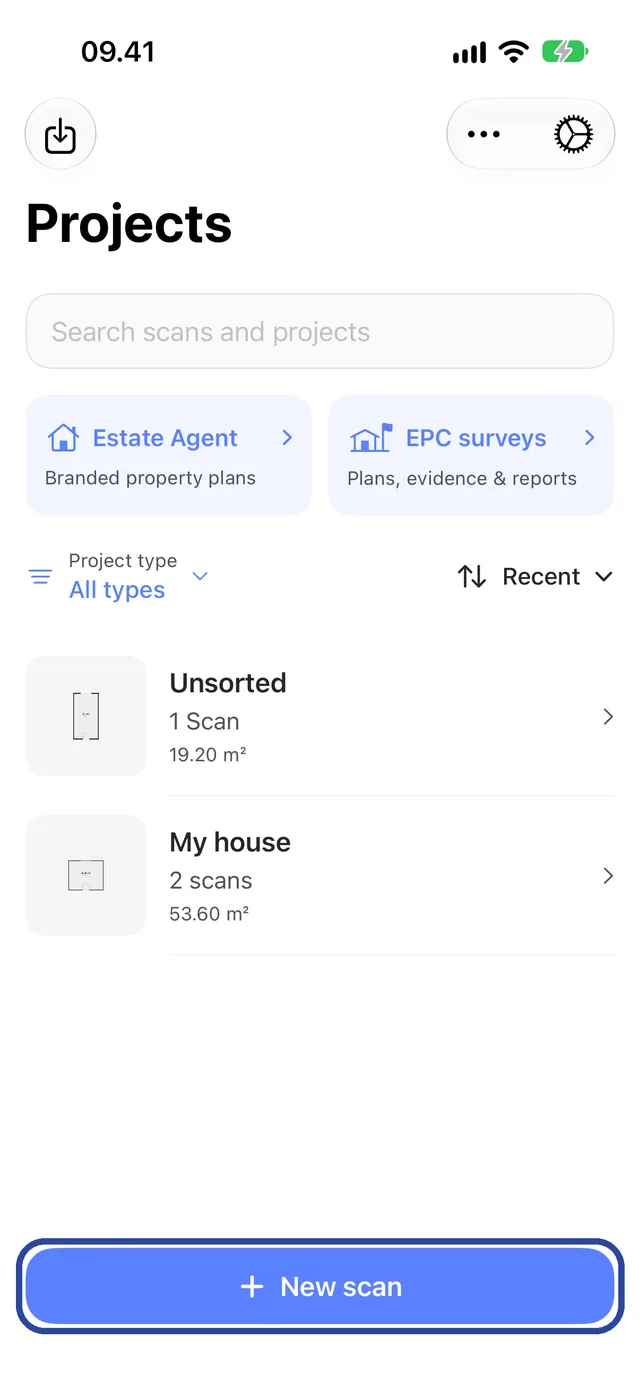
- Stand in a corner or doorway and tap Start scanning.
- Walk slowly along the walls and point the device at every wall, corner, door and window. White outlines appear on what has been measured.
- Follow the short messages on screen, such as moving slower or adding light.
- When the outlines cover the whole room, tap Stop scanning and wait a few seconds.
2. Name and save it
Check the preview and type a name, such as Kitchen. Then:
- Only this room: tap Save & View Floor Plan.
- More rooms on this floor: tap Scan next room, walk into the next room, tap Scan next room again and scan it. When the floor is done, tap Save floor plan (… rooms).
If a room did not come out right, tap the orange arrow to scan it again before you continue.
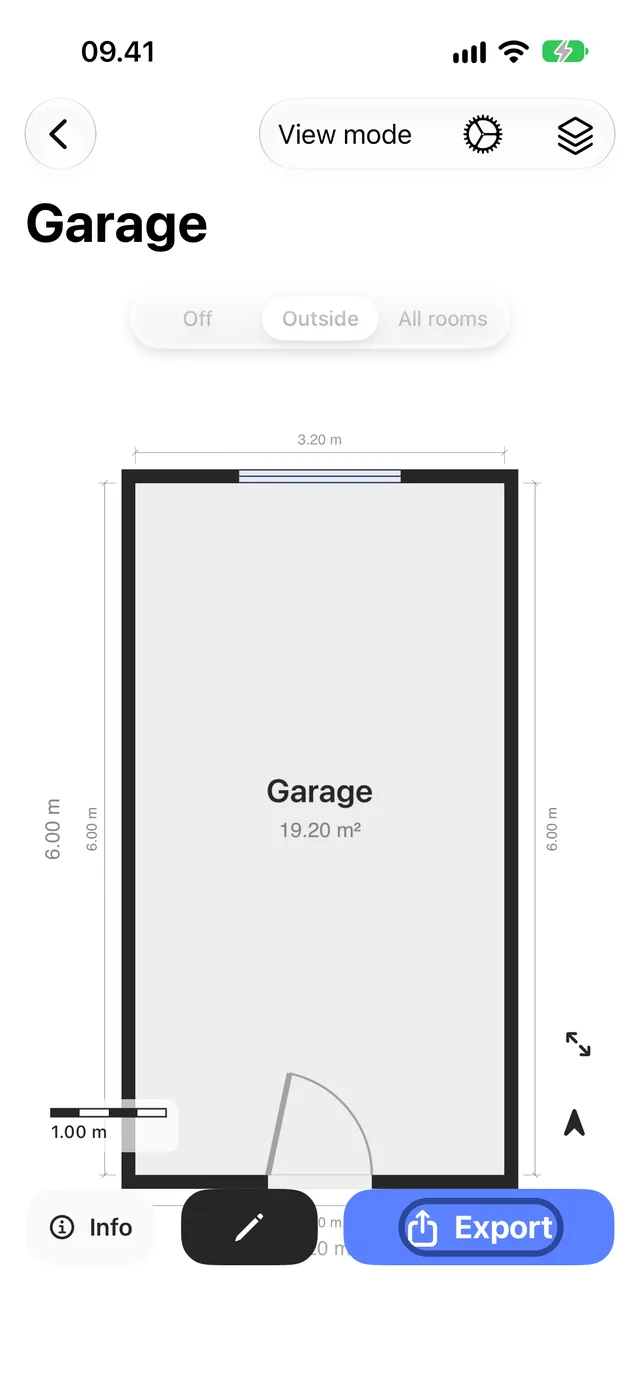
After saving, the plan opens. Switch between 2D, 3D and AR under View mode, and see the floor area and wall lengths under Info.
Scanning tips
- Go slowly. Fast movement is the most common reason for a messy scan.
- Sweep each wall from floor to ceiling once, then move on.
- Mirrors, glass and very dark surfaces are hard to measure. Point at them a little longer, and check them in the editor afterwards.
- One floor per plan. Save before you go up or down stairs; the multi-storey guide explains how to keep floors together.
Common questions
Can I move furniture around
Furniture you scan appears on the plan and in 3D, and you can show or hide it with the gear at the top right. Adding furniture by hand in the editor is part of Pro.
The scan missed a door or window
Open the plan, tap the pencil and add it with +. The edit, export and share guide shows how.
Nothing was captured
Start again and move more slowly, so the walls and floor are detected. Make sure the room is lit.
How many rooms can I scan for free
Two. A floor plan of several rooms scanned in one go counts as one. When you reach the limit, the button on the Projects screen changes to Unlock more scans; Pro removes the limit.
How accurate is the scan
Accuracy depends on the room, its surfaces and how you scan. Scan slowly, check the outline and openings, and compare critical measurements with a tape or laser measure. Correct the plan in the editor before using it for ordering, fitting or construction.
Need help? Contact us and tell us which step you reached and your device.
